
Securing your account
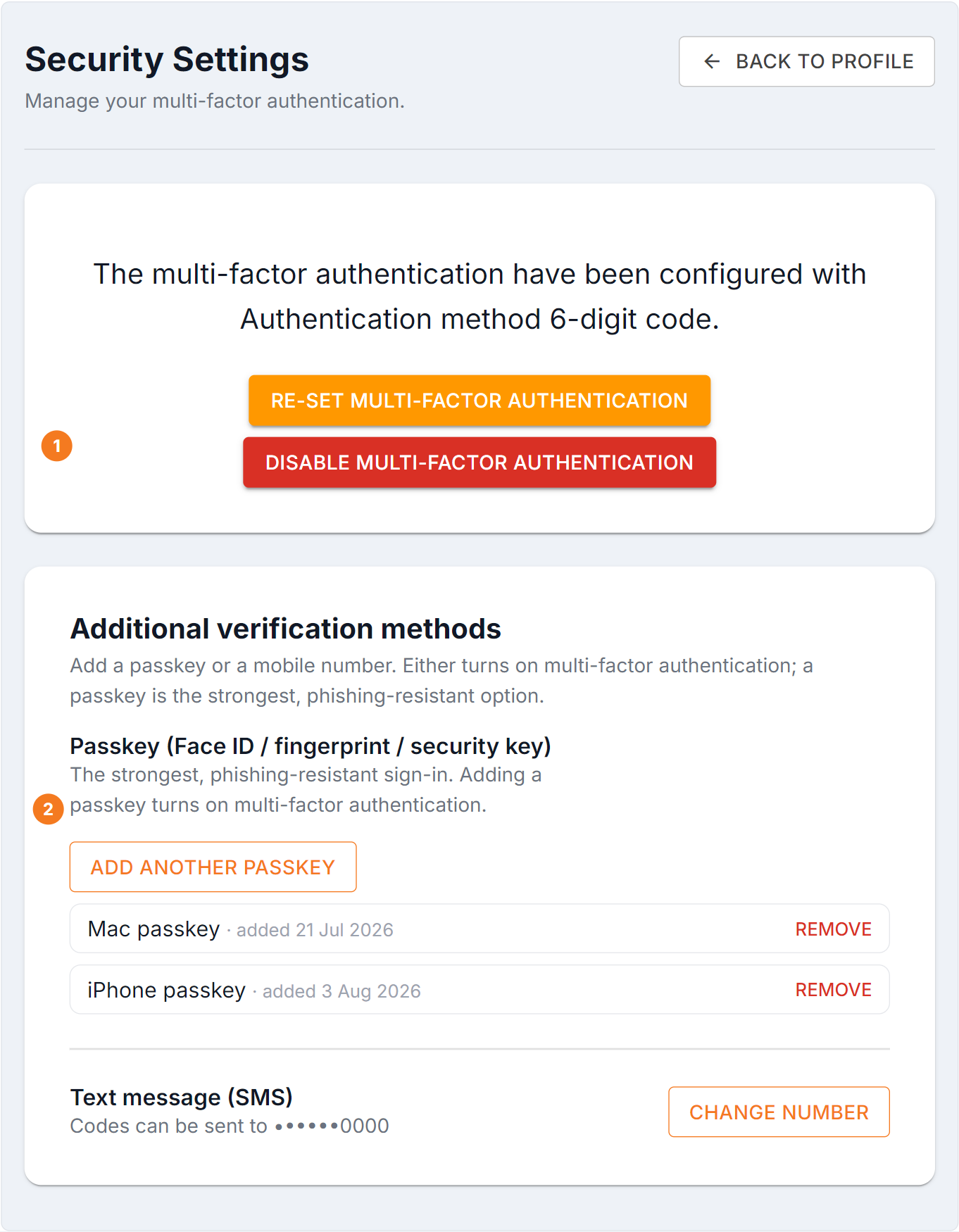
Figure 1 — Security Settings. The card at the top manages the authenticator app — reset it when you change phones, or disable it. (1) The Passkey section under Additional verification methods: Add a passkey uses Face ID, a fingerprint or a security key, and each registered passkey is listed with Remove. (2) A mobile number lets BUZ text you a code as a fallback.
Which method should you use?
Section titled “Which method should you use?”| Method | Security | Best for |
|---|---|---|
| Passkey — Face ID, fingerprint or a security key | Strongest. Phishing-resistant | Everyone. Use this if your device supports it |
| Authenticator app — a 6-digit code that rotates | Strong | Shared or older devices |
| SMS to your mobile | Good — better than nothing | A fallback when the others don’t suit |
Add a passkey
Section titled “Add a passkey”A passkey uses the security your device already has — Face ID, a fingerprint, your screen lock, or a hardware security key. There’s no code to type and nothing to remember.
- Go to My Profile → Security Settings.
- Under Additional verification methods, find Passkey (Face ID / fingerprint / security key).
- Select Add passkey.
- Your device prompts you — use your face, fingerprint, PIN or security key.
- The passkey appears in your list.
Your registered passkeys are listed with a Remove option beside each.
Set up an authenticator app
Section titled “Set up an authenticator app”You’ll need an authenticator app on your phone — Microsoft Authenticator, Google Authenticator, Authy or similar.
- On Security Settings, start the authenticator setup.
- Scan the QR code with your authenticator app.
- Enter the 6-digit code the app shows, to confirm it’s working.
- Setup is confirmed.
From then on you’ll be asked for the current code when you log in.
You can also reset, re-enable or disable the authenticator from this screen — reset is what you use when you’ve changed phones.
Add your mobile number
Section titled “Add your mobile number”Enter your mobile under Additional verification methods and BUZ can text you a code at login.
Make sure the number is one you’ll have access to — it’s no help on a phone in a drawer.
Common questions
Section titled “Common questions”| Question | Answer |
|---|---|
| “Add passkey” does nothing | Your browser or device may not support passkeys. Try a current browser, or use an authenticator app. |
| Authenticator codes rejected | The phone’s clock has drifted. Turn on automatic date and time and try again. |
| Lost the phone with my authenticator | Use another registered method. If you have none, contact your BUZ administrator. |
| I don’t want MFA | If your organisation requires it, it can’t be skipped. Otherwise you can disable the authenticator, but it’s a bad trade. |
| Removed a passkey by mistake | Just add it again — nothing else is affected. |