
Account 360
Open it by selecting a company in the Accounts list.
The header
Section titled “The header”
Figure 1 — the header (design illustration). On the live screen a New lead button sits before New quote, and a pencil (edit) icon replaces the ⋮ shown here.
The account’s name and type, with the two numbers most often asked for on a call — the current Balance (red when they owe you) and their Credit limit.
Actions here:
- Call / Email — start a call or email to the account’s main contact.
- New lead — start a lead for this account.
- New quote — start a quote for this account.
- Edit (pencil) — change the account’s details.
Sales insights
Section titled “Sales insights”
Figure 2 — the insight band on a customer account: Total sales, Orders, Avg / month and Last order, beside the last twelve months of sales.
Customer accounts show a sales summary for the last 12 months. It’s the fastest read on whether an account is growing or going quiet — a tall run of bars ending in short ones is a customer worth ringing.
Open items
Section titled “Open items”
Figure 3 — open items. Anything unresolved — a quote awaiting an answer, an overdue invoice — sits here until it’s dealt with. Select a card to open the document.
The strip only appears when something is open; a clear screen means nothing is waiting.
Contacts, details and files
Section titled “Contacts, details and files”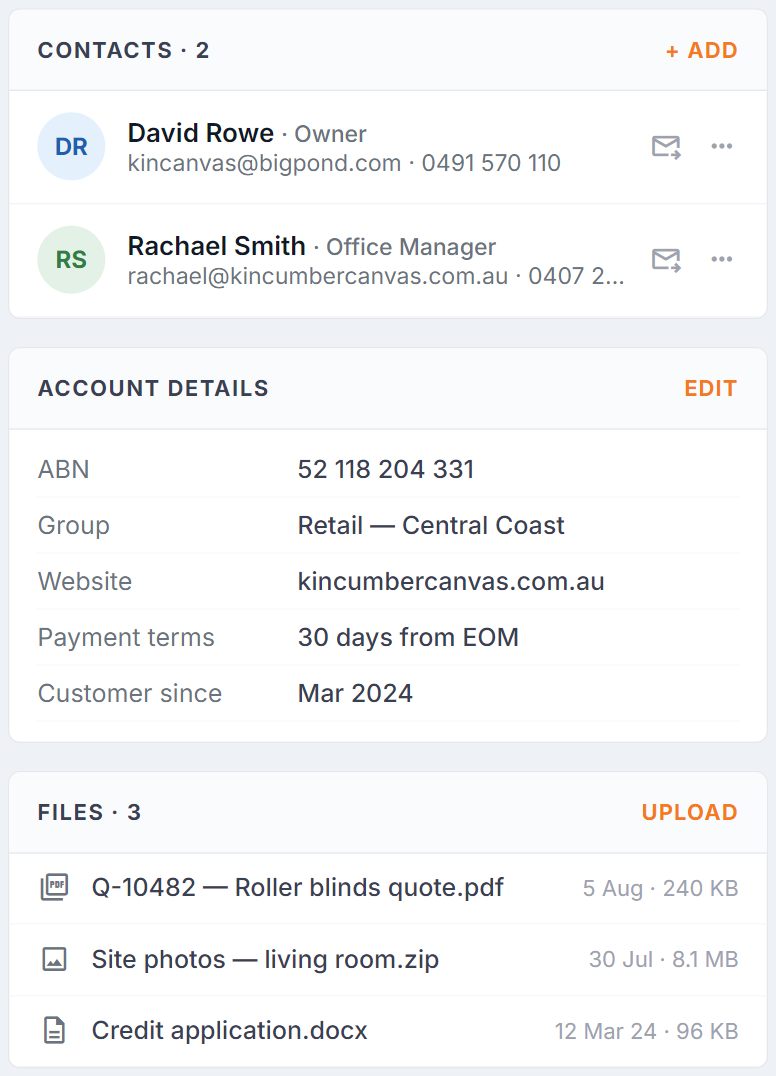
Figure 4 — the sidebar: the people on the account, its details, and attached files.
- Contacts — the people at that company. + Add creates a new person; the envelope icon sends a Customer Portal invitation (the contact needs an email address first), and the … menu has the rest, including moving a contact to another account.
- Account details — ABN, group, website, payment terms and how long they’ve been a customer. Edit changes them.
- Files — documents attached to this account. Upload adds one.
Activity — one feed, including history
Section titled “Activity — one feed, including history”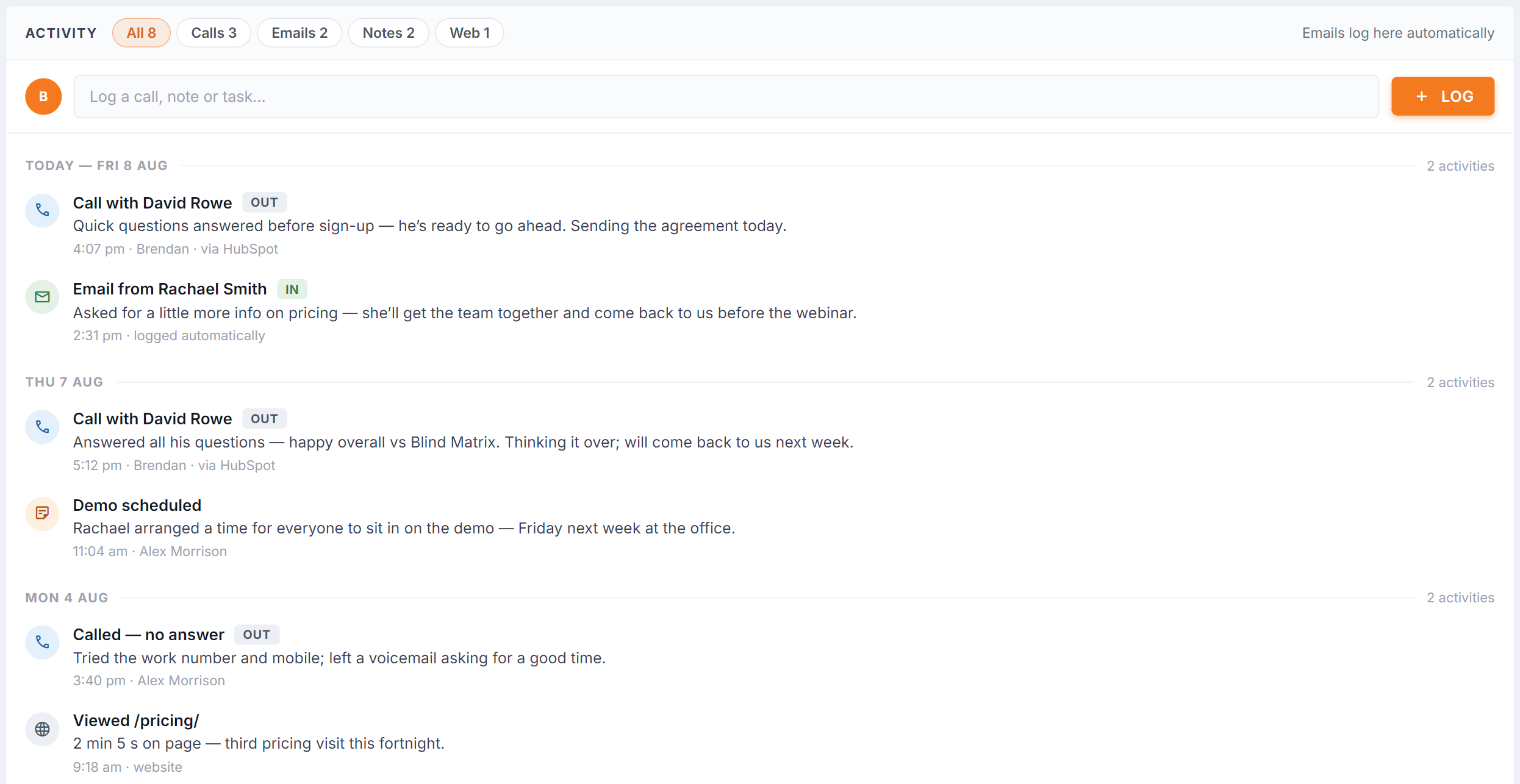
Figure 5 — the activity feed (design illustration). The live feed also shows record entries — every lead, quote, order and invoice appears in the feed at its date with its amount and status — plus a Milestones filter chip. The live composer is a single bar with a type selector, and it grows a due-date box or an Out/In toggle as you need them — see Log an activity below.
Everything that has ever happened on the account, newest first, grouped by day. There is no separate history panel — the history is the feed:
- Calls, emails and notes your team has logged. Emails log themselves when email logging is on — subject, body and attachments, with an In/Out tag.
- Records — every lead appears at its lead date, and every quote, order and invoice at its document date, each showing its amount and current status. Selecting the Lead or Order chip on an entry jumps to that record.
- Milestones — automatic markers BUZ writes for you as the work moves along. A lead being created and its status changing (“Lead 3 created”, “Lead 3 won”), a quote or order being raised (“Quote 1043.A created”), a quote or order changing status (“Status → Accepted”), and jobs moving on the workflow boards (“Job tracking → In Production”, “Dispatch → Delivered”). Nobody types these — they give the feed its turning points, so the account reads as a story without anyone keeping a diary.
- Web — pages this account’s people have viewed on your website, when your website is connected.
Filter chips — All / Calls / Emails / Notes / Milestones / Web — narrow the feed to one kind of entry, with a count on each.
Dig into a record
Section titled “Dig into a record”An order entry in the feed expands to show its Lines, with links straight to Quoting, Job tracking and Dispatch for that order.
For the full picture, every quote, order and invoice entry has a Details button (the open-in-new icon). It opens a panel on the right with the complete customer-service view of that record — financials, payments, job tracking, dispatch and notes — without leaving the 360. It works for older orders too, so “where’s my order?” (or “what did we do on that job last year?”) is answered from this one screen.
Log an activity
Section titled “Log an activity”The composer is the bar at the top of the feed — one line, no dialog to open:
- Pick the type — Note, Call, Email, Meeting, Task or Follow-up.
- Type what happened, in a line.
- Press Enter (or select Log).
Two extra controls appear only when they apply:
- Task or Follow-up — a due date box appears next to the text. Give it a date and the item joins your follow-up lists — My Day, the calendar and the dashboard tile. Leave it blank and it’s just a note to the account.
- Call or Email — an Out / In pair appears, so the entry records which way the contact went. Out is selected for you.
For the longer story, select the tune icon beside Log to open a Notes box under the bar; collapsing it keeps what you’ve typed. Your one line becomes the entry’s title, and anything past 100 characters moves into the notes automatically.
Money and permissions
Section titled “Money and permissions”Money on a customer account needs the Customers permission (supplier accounts, the Suppliers permission). Without it the screen keeps its layout but shows — for Balance, Credit limit, Total sales, Avg / month and open-item amounts, and the sales chart is replaced by a note explaining which permission to ask your administrator for. Counts and dates stay visible.
On a customer call
Section titled “On a customer call”- Find them in the Accounts list and open their 360.
- Check the Balance in the header if it’s an account question.
- If it’s about an order, find its entry in the feed — expand it for the lines, or select Details for the full view with payments, job tracking and dispatch.
- Scan the feed for what was last said, and by whom.
- Log what you discussed with the composer before you hang up — and if you promised to ring back, log it as a Follow-up with the date you promised.
Common questions
Section titled “Common questions”| Question | Answer |
|---|---|
| Emails aren’t appearing | Email logging isn’t on, or that address isn’t on the account. See Email logging. |
| Where did the History card go? | It merged into the activity feed — every lead, quote, order and invoice now appears in the feed at its date. Use the filter chips to narrow it, and Details on any entry for the full record. |
| The money all shows “—” | You don’t have the Customers (or Suppliers) permission — ask your administrator. |
| No website activity | Your website isn’t sending activity, or this person hasn’t been matched to a visit. |
| A contact is on the wrong account | Use the … menu on the contact row to move them. |
| Portal invite button is disabled | The contact has no email address — add one and try again. |