
Connect BUZ to Claude
Connect it
Section titled “Connect it”You’ll need a Claude account and your normal BUZ login.
-
In Claude, open Settings → Connectors.
-
Choose Add custom connector.
-
Give it a name —
BUZ MCPis the obvious one — and enter the connector URL:https://mcp.buzmanager.comLeave Advanced settings alone. The OAuth client ID and secret are optional and BUZ doesn’t need them, and Individual sign-in is the connection method you want — each person signs in to BUZ as themselves.
-
Select Add. Claude opens the BUZ Authorisation page. Log in with your usual BUZ credentials if you’re not already signed in.
-
Pick your organisation from the dropdown and choose Allow Access.
-
You’re returned to Claude with BUZ listed as a connector.
Test it by asking Claude: “Using BUZ, who am I and which organisation am I connected to?” It should answer with your name and the organisation you picked.
If you use Claude Code in a terminal
Section titled “If you use Claude Code in a terminal”Claude Code has no Settings → Connectors screen, so the steps above don’t apply. Add the connector from the command line instead:
claude mcp add --transport http https://mcp.buzmanager.com -s userThen run /mcp inside Claude Code and choose to authenticate. That opens the same BUZ
Authorisation page as step 4 above — log in, pick your organisation, and choose Allow
Access. -s user makes the connector available in all your projects rather than just the
current one.
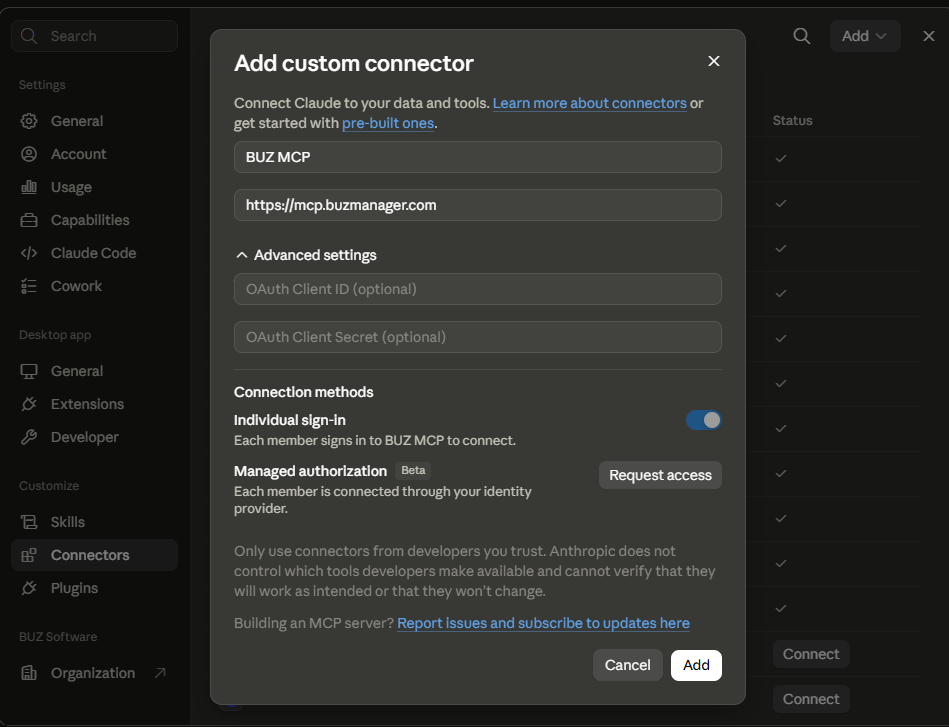
Figure 1 — Claude’s Add custom connector dialog. Give it a name and the BUZ connector URL. The OAuth Client ID and Secret under Advanced settings are optional and BUZ doesn’t use them — leave them blank. Individual sign-in is the connection method you want, so each person signs in to BUZ as themselves.
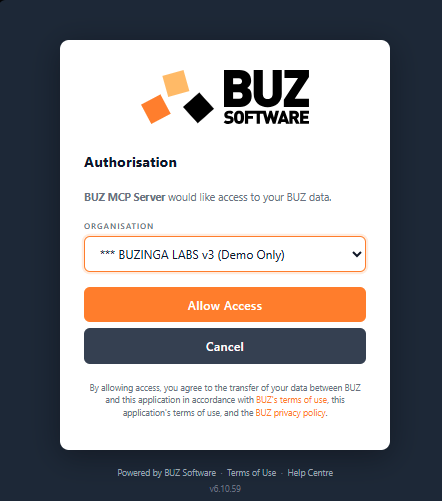
Figure 2 — the BUZ Authorisation screen. Pick the organisation you want Claude to work with, then Allow Access. This is the choice that fixes which organisation the connector sees — to change it later you disconnect and add the connector again.
What you can ask
Section titled “What you can ask”You don’t need to learn any commands — ask in plain English and mention BUZ. Some examples:
Leads and sales
- “How many leads did we get last month, and how many converted?”
- “Show me open leads for the Northern branch.”
- “Which sales rep wrote the most business this quarter?”
- “Book a follow-up appointment for the Henderson lead next Tuesday morning.”
Customers
- “Find the customer with the email address jo@example.com.”
- “What’s the recent activity on the Bayside Blinds account?”
- “Log a call activity against this customer saying I’ve quoted them.”
Orders and production
- “What orders are in production right now?”
- “Show me work in progress.”
- “Move order 10432 to the next status.”
Scheduling and installs
- “What’s on the dispatch schedule for Thursday?”
- “Which jobs are booked for install next week?”
Settings
- “List our branches and tax rates.”
- “Add a new branch called Western Suburbs.”
Control what Claude can do
Section titled “Control what Claude can do”Open the connector in Settings → Connectors → BUZ MCP and you get Tool permissions — a list of everything Claude can do in BUZ, split into read tools and write/delete tools. Each one can be set to:
- Always allow — Claude uses it without asking.
- Ask — Claude checks with you first.
- Deny — Claude can’t use it at all.
You only see tools your BUZ permissions already allow, so this narrows what Claude can do — it can never widen it.
Disconnect is on the same screen when you want to remove the connector entirely.
One organisation per connection
Section titled “One organisation per connection”You choose an organisation when you connect, and the connector stays on it. To work with a different organisation, disconnect the connector in Claude and add it again, choosing the other organisation.
Good to know
Section titled “Good to know”Troubleshooting
Section titled “Troubleshooting”| What you see | What to do |
|---|---|
| Sign-in loop, or “not authorised” | Your BUZ session may have expired. Remove the connector in Claude and add it again. |
| Wrong organisation’s data | The organisation is fixed when you connect. Remove the connector and re-add it, picking the right one. |
| “I don’t have access to that” | Your BUZ user group doesn’t include that area. See Groups & permissions. |
| Nothing comes back, or errors on every question | Check you can sign in to BUZ normally in a browser first. |
See also
Section titled “See also”- Integrations overview
- Webhooks (developer API) — for building custom automation instead.