
Calendar connections
Both live under My Profile: Microsoft 365 Credentials and Google Credentials.
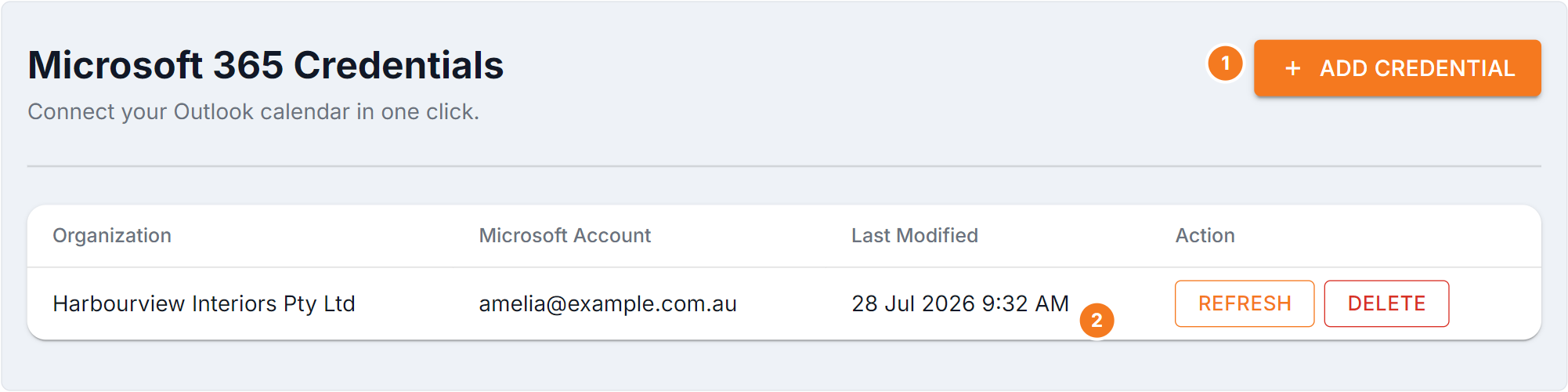
Figure 1 — Microsoft 365 Credentials. (1) Add Credential starts the one-click connect — sign in to Microsoft and approve access. (2) Refresh re-authorises a connection when appointments stop syncing; Delete removes it. Connections are per organisation, so connect in each one you need.
Connect
Section titled “Connect”- Go to My Profile and choose Microsoft 365 Credentials or Google Credentials.
- Select the connect button at the top.
- Sign in to Microsoft or Google and approve access.
- You’re returned to BUZ and the account appears in the list.
What the list shows
Section titled “What the list shows”| Column | Meaning |
|---|---|
| Organization | Which BUZ organisation the connection applies to |
| Microsoft Account / Google Account | The account you connected |
| Last Modified | When the connection was last set up or refreshed |
| Action | Refresh or Delete |
Refresh
Section titled “Refresh”Refresh re-authorises a connection. Use it when appointments stop syncing — access from Microsoft or Google expires periodically, and refreshing restores it without setting everything up again.
Delete
Section titled “Delete”Delete removes the connection. You’re asked to confirm. Appointments already in your calendar stay there; new ones stop appearing.
Common questions
Section titled “Common questions”| Question | Answer |
|---|---|
| “No credentials connected” | Nothing connected yet for this organisation — use the connect button. |
| Appointments stopped appearing | Try Refresh first; access usually just expired. |
| Wrong account connected | Delete it and connect again with the right one. |
| Connected but nothing syncs | Check you connected in the organisation you’re actually working in. |
See also
Section titled “See also”- Your profile
- Email logging — for logging email, not calendar