
Finding purchase orders
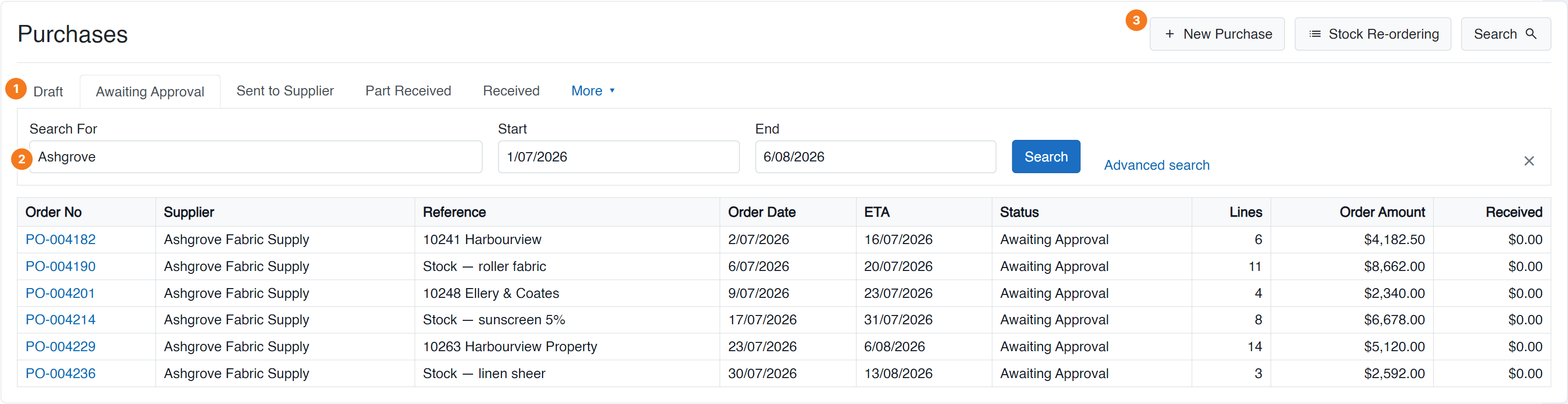
Figure 1 — Purchases, the front door to Purchasing. (1) Each tab is one purchase-order status, in Seq No order, with anything that doesn’t fit under More. (2) The search panel opens over the list — simple search here, with a switch to advanced for order number, reference, company, contact name, email or phone. (3) New Purchase starts a PO: choose the supplier, then add items.
Work by status
Section titled “Work by status”Each tab is one of your purchase-order statuses, so the tabs are your workflow — select a tab to see everything sitting at that stage. If you have more statuses than fit, the rest are under More.
The tabs come from your purchase order statuses settings, so they match how your business actually buys.
Search
Section titled “Search”Select the search button to open the search panel. There are two modes, and you can switch between them from within the panel.
Simple search
- Search For — free text.
- Start / End — a date range.
Advanced search
- Order Number
- Reference
- Company Name
- First Name / Last Name
- Phone Number
- Start / End dates
Start a new purchase order
Section titled “Start a new purchase order”Select New Purchase. You’ll choose the supplier, then add the items you’re ordering.
- New Purchase.
- Choose the supplier.
- Add the items and quantities.
- Save — the PO appears under its status tab.
Once created, everything else happens on the purchase order summary.
Common questions
Section titled “Common questions”| Question | Answer |
|---|---|
| “Purchase” with nothing under it | You don’t have purchasing access — ask your administrator. See Groups & permissions. |
| A PO isn’t in the tab I expect | Check its status — it may have moved. Search by order number to find it. |
| A status tab is missing | It’s under More, or the status is inactive in settings. |
| Search returns nothing | Clear the date range — it applies even when you’ve only typed a name. |