
Organisation details
1. Organisation basics
Section titled “1. Organisation basics”The first card captures your identity as a business.
- Display Name — the short name shown around BUZ and to your team. Required.
- Legal Trading Name — your registered business name, used on legal documents. Required.
- ABN — your Australian Business Number; appears on tax invoices.
- Organisation Account Holder — the admin who owns the account and billing.
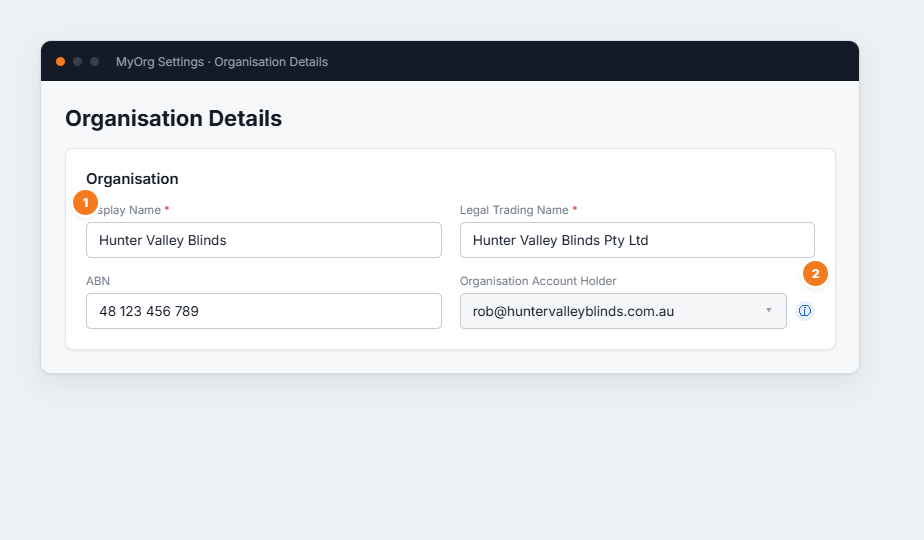
Figure 1 — the Organisation card. (1) Display Name and Legal Trading Name are both required. (2) The Account Holder is locked once set — contact BUZ Support to change it (that’s what the ⓘ icon tells you).
2. Address & contact
Section titled “2. Address & contact”The second card is your physical presence and how people reach you.
- Enter your Physical Address — start typing and pick from the suggestions so the map coordinates are captured. Required.
- Leave “Postal address is the same as physical” ticked, or untick it to enter a separate postal address.
- Provide a Telephone or Mobile — at least one is required.
- Set your Timezone and Language / Culture so dates, times and formatting are correct across BUZ.
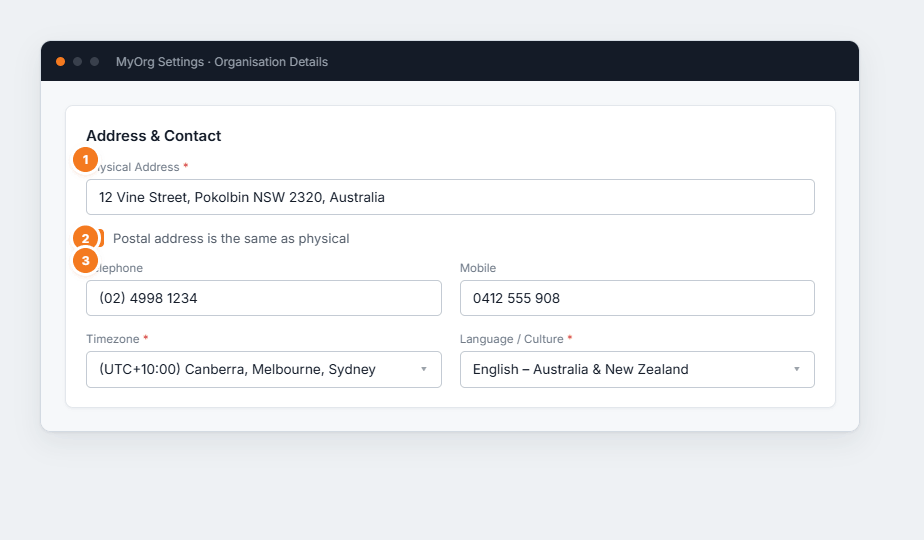
Figure 2 — Address & Contact. (1) The physical address uses type-ahead lookup. (2) Untick “same as physical” to reveal a separate postal address. (3) Telephone or mobile is required — you don’t need both.
3. Online links & branding
Section titled “3. Online links & branding”The third card controls what customers and new staff see.
- Website and Logo URL — your logo URL must be publicly reachable; it appears on the login screen and on document headers.
- Branded Login URL — a ready-made link that opens the login screen with your logo and welcome text already showing. Copy it with the button and share it with new users so they never have to type your company name.
- Info Email and Accounts Email — both required; BUZ uses these as reply-to addresses on the messages it sends.
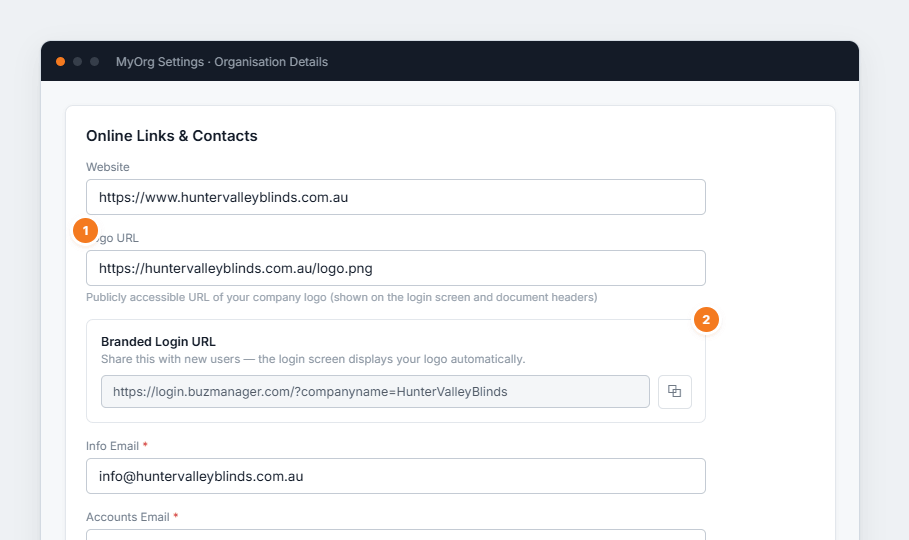
Figure 3 — Online Links & Contacts. (1) The Logo URL feeds the login screen and document headers. (2) Copy the Branded Login URL and share it with new users. (3) Click Save Changes to store the whole page.