
Users
The users list
Section titled “The users list”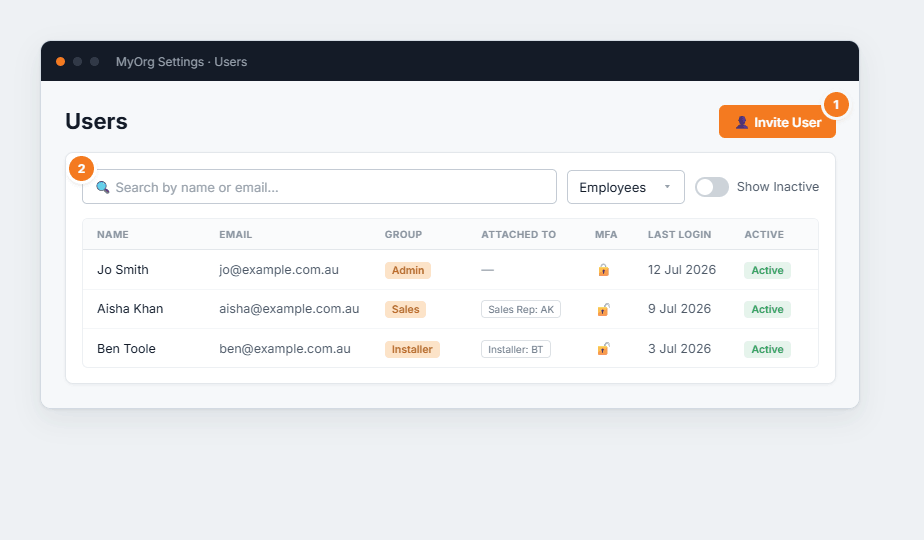
Figure 1 — the Users list. (1) Invite User opens the drawer to add someone. (2) Search, the Access Level filter (Employees vs Customers) and Show Inactive narrow the list. Each row shows the user’s group, what they’re attached to (sales rep / installer / customer), an MFA lock, last login and active status.
Click any row to open and edit that user.
Inviting or editing a user
Section titled “Inviting or editing a user”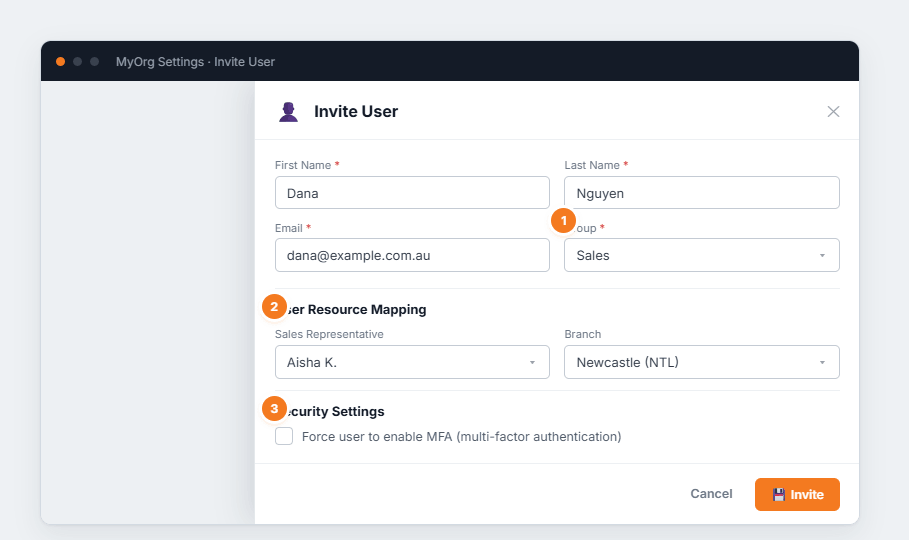
Figure 2 — the invite drawer. (1) Group is required — it sets the user’s permissions and licence type. (2) User Resource Mapping links the login to a sales rep, installer, branch, customer or supplier record. (3) Security Settings can force the user to turn on MFA.
- Click Invite User and enter their name and email.
- Pick a Group — this is what grants their permissions and consumes a licence of that type.
- If they’re a sales rep, installer or customer, set the matching resource mapping so their work links to the right record.
- Optionally tick Force MFA, then Invite — BUZ emails them a set-up link.