
Accounts list
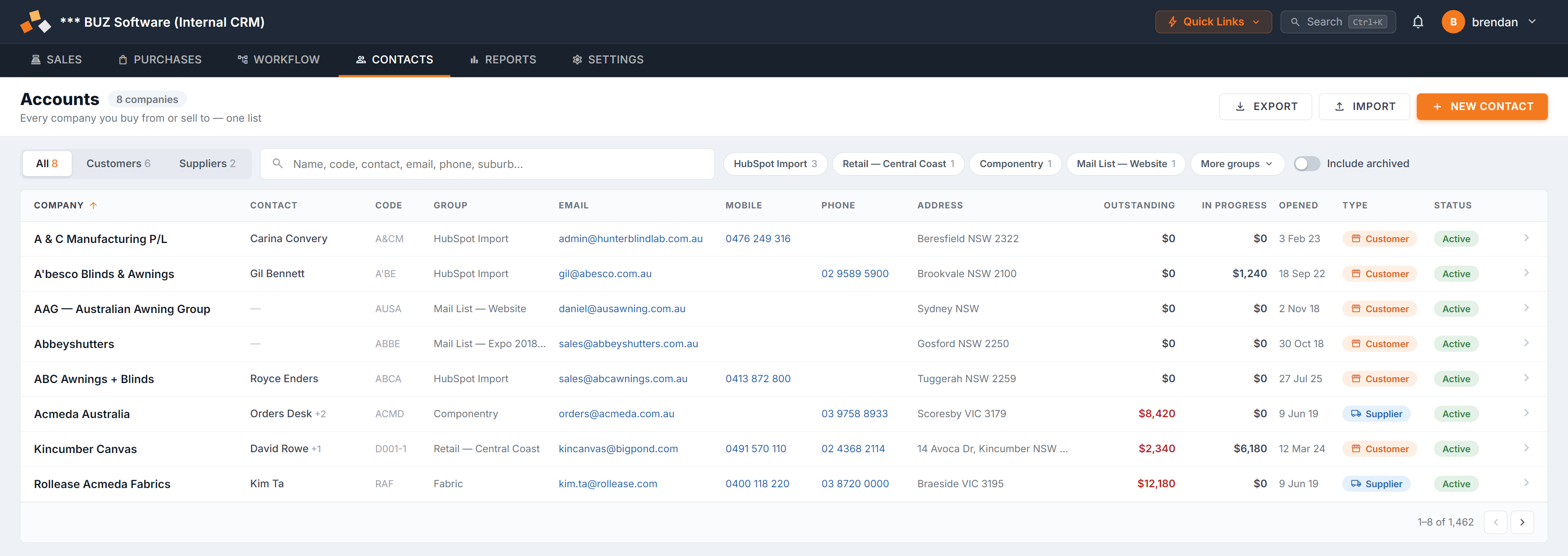
Figure 1 — the Accounts list. Customers and suppliers share one list; the Type pill on each row tells them apart. Select any row to open that account’s 360. (Illustration from the design prototype — the companies shown are examples.)
Find an account
Section titled “Find an account”
Figure 2 — the toolbar. Everything here narrows the list; the counts update as you go.
- All / Customers / Suppliers — switch between everyone, just the companies you sell to, or just the ones you buy from. Each segment shows its count.
- Search — matches any part of the company name, code, contact name, email, phone number, address or suburb.
- Group chips — select one or more customer groups to narrow the list. The most-used groups appear as chips; More groups opens the full list with a type-to-filter box.
- Include archived — off by default. Turn it on to include accounts you’ve archived; they appear greyed with an Archived tag.
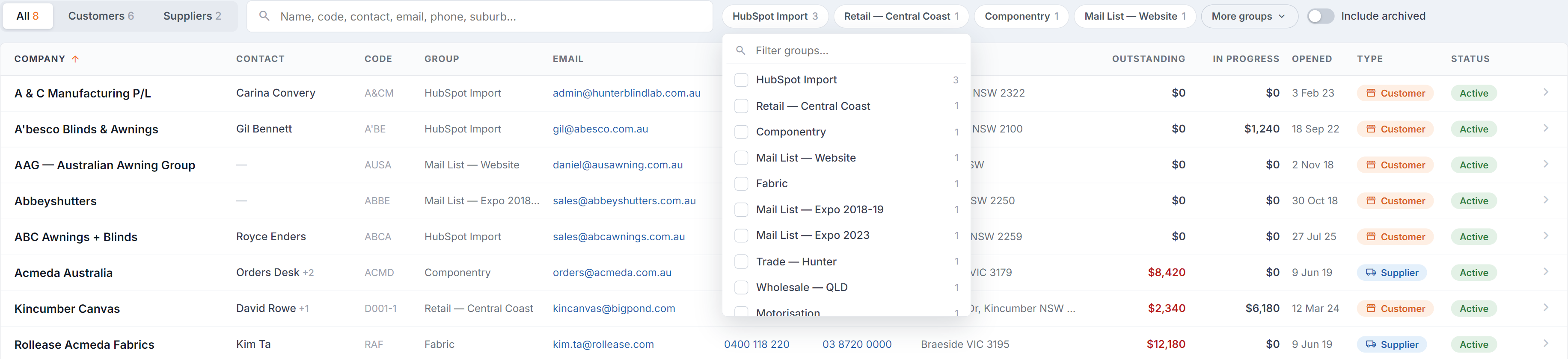
Figure 3 — More groups. Tick as many groups as you like; clearing every tick shows all groups again.
Reading the list
Section titled “Reading the list”- Company — the account name. Archived accounts are greyed with an Archived tag.
- Contact — the main person, with a +n when there are more people on the account.
- Email / Mobile / Phone — live links. Selecting one starts an email or call without opening the row.
- Outstanding / In progress — what they owe you and the value of their open orders.
- Type — Customer (orange) or Supplier (blue).
- Status — Active or Archived.
Column headings sort the list — select once for ascending, again to flip.
A dash (—) in a value column means there’s nothing to show; a dash in every money cell means you don’t have permission to see money — see below.
Money columns and permissions
Section titled “Money columns and permissions”The Outstanding and In progress figures for customers need the Customers permission, and supplier balances need the Suppliers permission. Without the permission the rows still appear, but the money shows as — and a note in the list footer explains why. Ask your administrator if you need access.
Create a contact
Section titled “Create a contact”- Select New contact.
- The type defaults to whatever the list is filtered to — viewing Suppliers and selecting New contact starts a supplier.
- Enter the code and name — these identify the account everywhere else in BUZ — then the group and contact details.
- Save.
Export
Section titled “Export”Export downloads the accounts currently listed to Excel — it respects your search and filters. Filter to what you want first, then export.
Import
Section titled “Import”Import brings accounts in from an Excel file (.xlsx).
- Filter and Export first — the exported file is the right shape to work from.
- Add or edit rows in Excel.
- Select Import and choose your file.
- Check the result, then spot-check a few records in the list.
See also
Section titled “See also”- Account 360 — everything about one account
- Suppliers — how supplier accounts work in this list