
Email logging
There are two ways to get email into BUZ, and you can use either or both:
| Connected mailbox | BCC address | |
|---|---|---|
| How it works | BUZ reads a Microsoft 365 mailbox every 15 minutes | You BCC a private BUZ address when you send |
| Covers | Everything in that mailbox, both directions, automatically | Individual emails you choose, from any email program |
| Needs | Microsoft 365 | Nothing |
| Effort | Set up once | Remember to BCC each time |
Most teams connect a shared sales mailbox and hand out the BCC address to anyone who sends customer email from somewhere else.
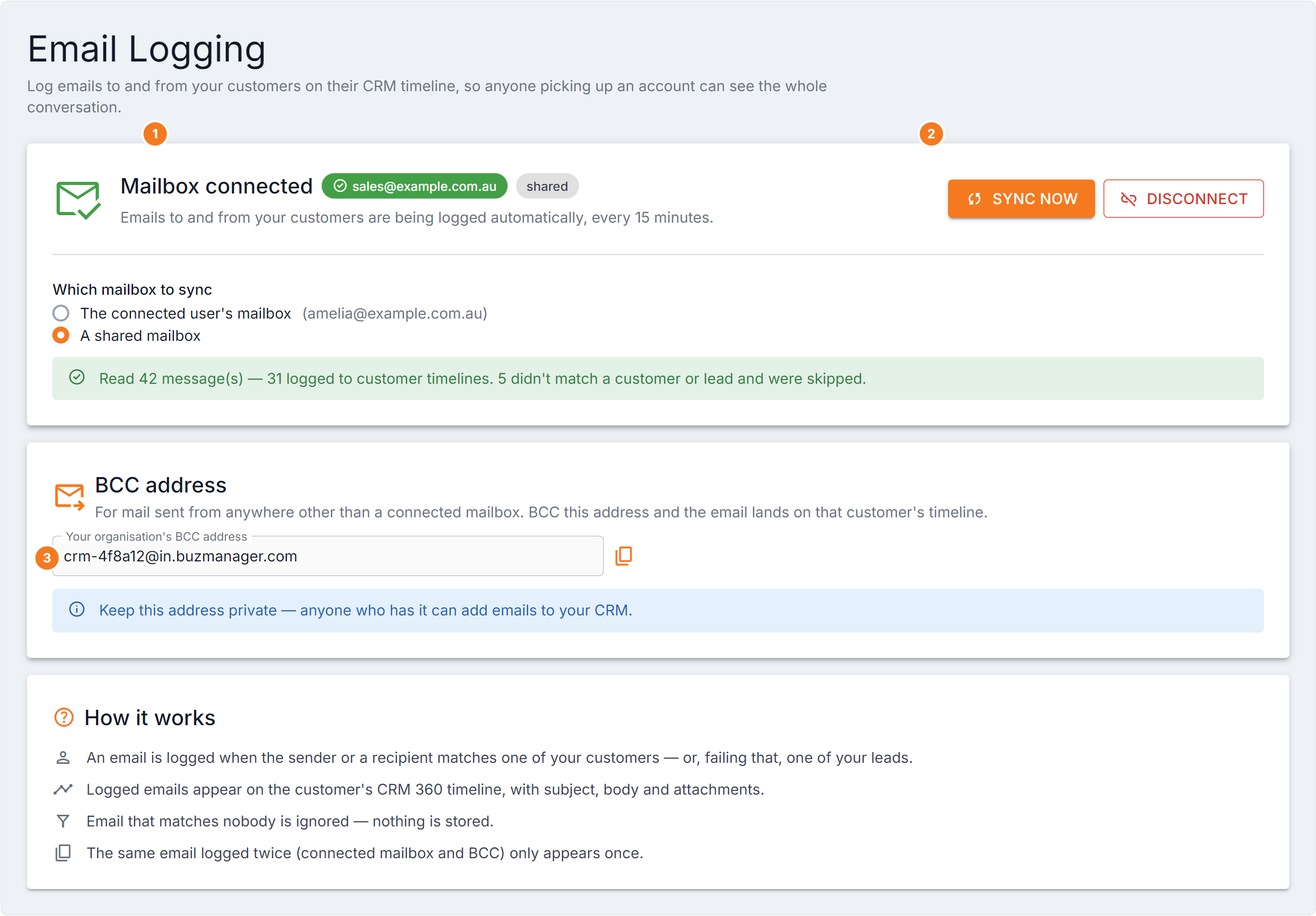
Figure 1 — Email Logging with a mailbox connected. (1) The connection status panel names the address actually being synced, with a shared chip when it’s a shared mailbox. (2) Sync now starts a sync immediately instead of waiting for the 15-minute cycle; Disconnect stops all future syncing. (3) The BCC address with its copy button — BCC it from any email program and the email lands on the customer’s timeline.
Connect a Microsoft 365 mailbox
Section titled “Connect a Microsoft 365 mailbox”- Go to Settings → Integrations → Email Logging.
- Select Connect mailbox.
- Sign in to Microsoft and approve access when prompted. You’re returned to BUZ.
- The panel turns green and shows Mailbox connected with the address being synced.
The first sync runs within 15 minutes — or select Sync now to start it immediately. After that it runs automatically every 15 minutes.
Choose which mailbox to sync
Section titled “Choose which mailbox to sync”Once connected, Which mailbox to sync appears with two choices:
- The connected user’s mailbox — the personal mailbox of whoever signed in.
- A shared mailbox — enter the address (for example
sales@yourcompany.com) and select Save.
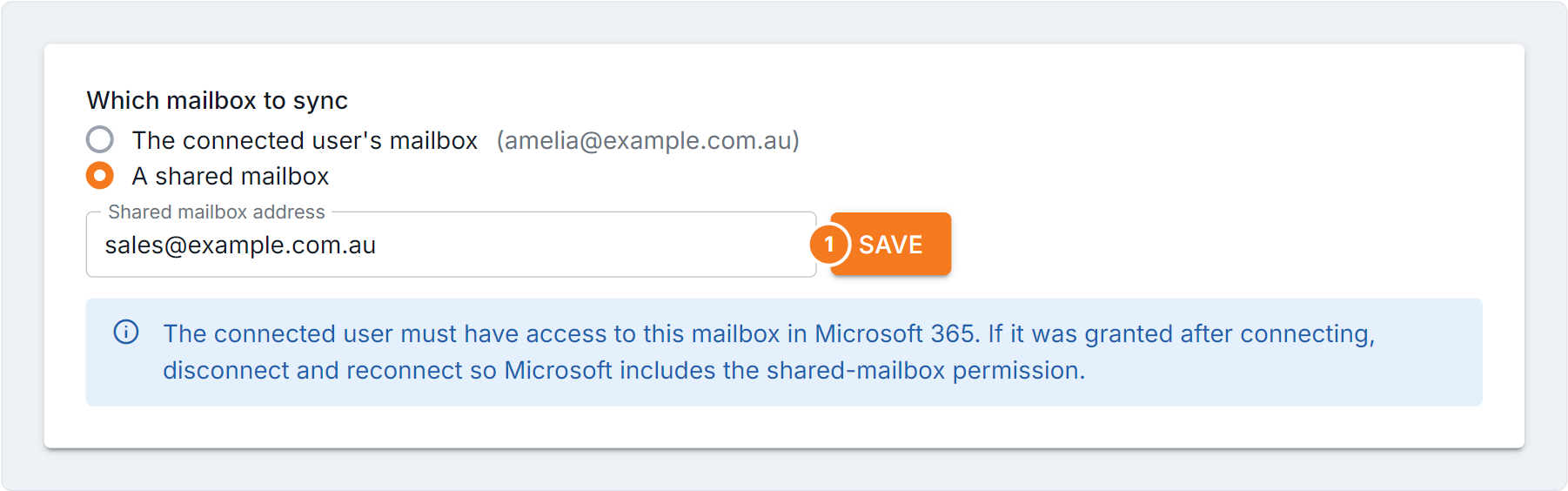
Figure 2 — choosing which mailbox to sync. Select A shared mailbox, type the address, then (1) Save. If the shared mailbox doesn’t sync, the connected user didn’t have access to it at the moment access was approved — disconnect and connect again.
Reading the sync result
Section titled “Reading the sync result”After a Sync now, a banner tells you what happened — how many messages were read, how many were logged to customer timelines, and how many didn’t match anyone and were skipped. A large “didn’t match” number usually means the email addresses in that mailbox aren’t on your customer or lead records yet.
Disconnecting
Section titled “Disconnecting”Disconnect stops all future syncing. Emails already logged stay on their timelines.
Use the BCC address
Section titled “Use the BCC address”Every organisation gets its own private BCC address. BCC it on an email to a customer and that email lands on the customer’s timeline — from Outlook, Gmail, your phone, anywhere.
- On the Email Logging page, find BCC address.
- Select the copy icon next to it.
- Add it to the BCC field of your email — or save it as a contact so it’s easy to pick.
How BUZ decides where an email goes
Section titled “How BUZ decides where an email goes”- An email is logged when the sender or any recipient matches one of your customers — or, failing that, one of your leads.
- Logged emails appear on the customer’s CRM 360 timeline, with subject, body and attachments.
- Email that matches nobody is ignored — nothing is stored.
- The same email logged twice (once by the connected mailbox, once by BCC) only appears once.
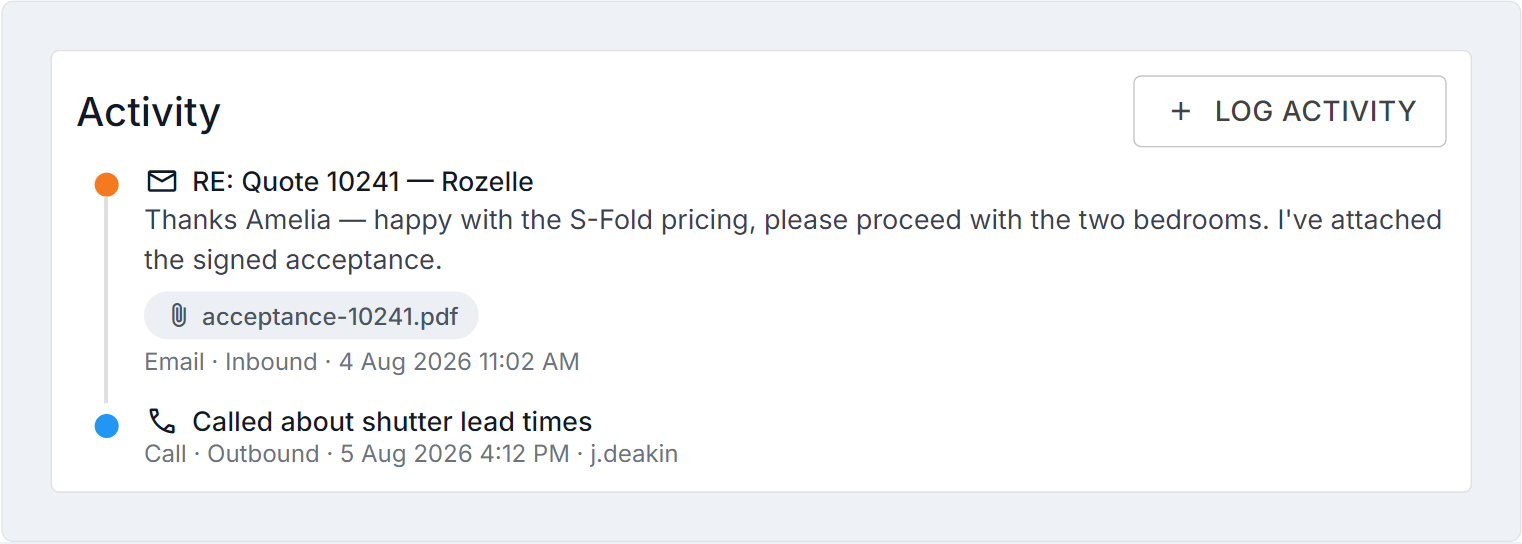
Figure 3 — a logged email as it appears on the Account 360 activity feed: subject, body and attachments, alongside calls and notes. Nothing is copied in by hand.
Troubleshooting
Section titled “Troubleshooting”| What you see | What it means |
|---|---|
| “Email logging isn’t switched on for your organisation yet” | Not enabled for you — contact BUZ support for access. |
| “You don’t have permission to access this page” | Your user group doesn’t allow it — ask your administrator. See Groups & permissions. |
| No Connect mailbox button at all | Mailbox syncing isn’t available in your environment. Use the BCC address instead. |
| Connected, but nothing on timelines | Check the sync result banner. If messages are read but nothing logged, the addresses aren’t matching a customer or lead. |
| Shared mailbox won’t sync | The connected user lacks access to it — grant access in Microsoft 365, then disconnect and reconnect. |