The same appointments show in four views — just arranged differently.
Calendar
The weekly planner. Best for booking and seeing a day or week at a glance. The default.
Grid
A plain list of appointments in rows, like a spreadsheet. Good for scanning and searching.
Board
Cards sorted into columns by status. Drag a card between columns to change its status.
Map
Appointments as pins on a map, with driving runs for a single day.
For Grid or Board — click the words Grid or Board in the white tab bar. Click Calendar to return.For the Map — click the round map button in the toolbar. Click it again to switch back.
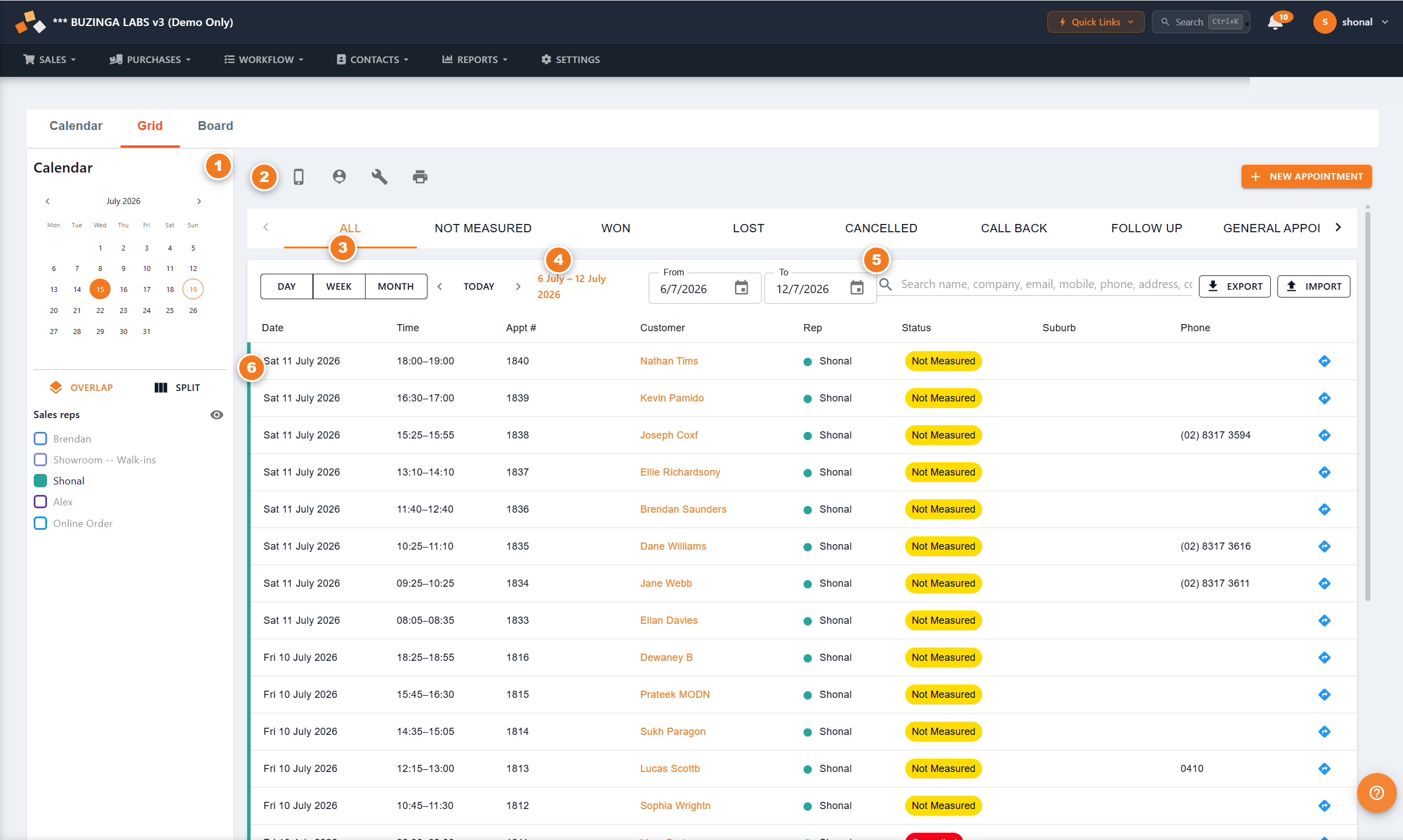
The Grid shows every appointment as a row. Best for finding one job among many, or exporting a list.
Figure 1 — the Grid view.
Side panel (the rail). Same as the calendar — mini-month, Overlap/Split, and rep tick-boxes.Toolbar. The round Map, My Day, private-appointment and Print buttons, plus New Appointment .Status filter tabs. Click one — All, Not Measured, Won, Lost, Cancelled, Call Back, Follow Up … — to show only that stage.Date range. Choose Day / Week / Month , step with the arrows or Today , or set exact From and To dates.Search, Export & Import. Type to find by name, company, phone or address. Export saves the list; Import brings one in.The list. One row per appointment. Click a customer’s name to open it; the blue arrow gives directions.
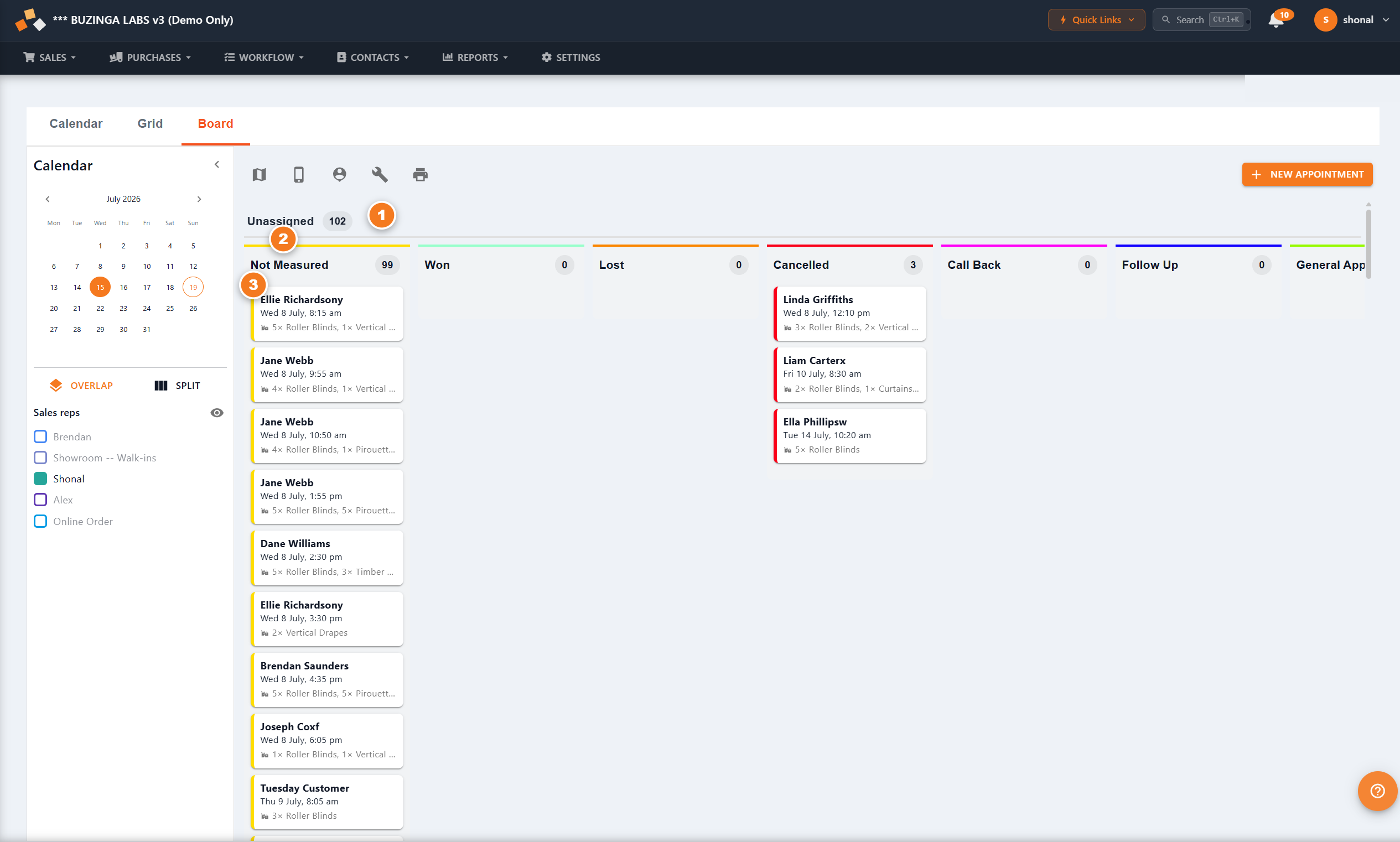
The Board (also called Kanban) sorts appointments into columns by status — great for seeing your pipeline.
Figure 2 — the Board view.
Unassigned count. How many appointments still need a rep assigned.Status columns. One column per stage, each a colour, with a count in the header.Appointment cards. Each shows the customer, day, time and products. Drag a card into another column to change its status.
When the Map shows a single day , BUZ turns each rep’s appointments into a numbered driving run —
the best order to visit them in — with a coloured route line and distances on the right.
Click Open in Google Maps next to a run to send the whole day’s stops to Google Maps for
turn-by-turn directions on your phone.
The map needs each customer to have a real address saved. If routes show as straight lines instead of
following roads, it’s a settings issue for your office to enable — the pins still work.