
The My Day screen explained
Everything you need for the day fits on one screen.
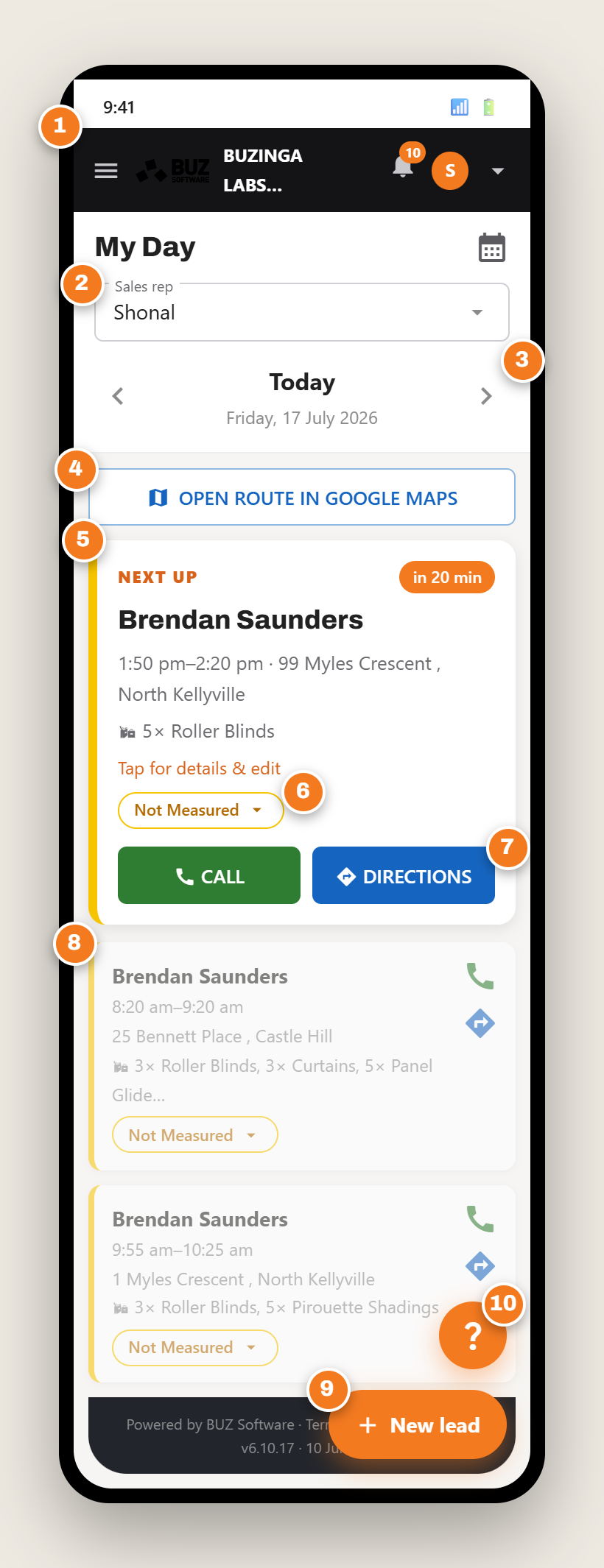
Figure 1 — My Day on a phone. Taken before the Follow-ups due band (item 11) was added, so it isn’t shown here.
- Top bar. The menu button, BUZ logo, your alerts bell, and your account (tap the avatar to sign out).
- Sales rep. Which rep’s day you’re viewing. Tap to pick a different rep (if you’re allowed).
- Day picker. Arrows move to the day before or after. It says “Today”, “Tomorrow” or the date.
- Open route in Google Maps. Sends your whole day’s stops, in order, to Google Maps.
- “Next Up” card. Today only — your very next appointment, made big, with a countdown.
- Status. Tap it to change the job’s stage (e.g. mark it “Won”).
- Call & Directions. Big green and blue buttons — one phones the customer, the other opens directions.
- Appointment list. The rest of the day in time order, with call & directions icons. Past ones are greyed out.
- New lead button. The orange button, bottom-right, to add a brand-new appointment from your phone.
- Help button. The orange ? just above New lead — opens the in-app help articles.
- Follow-ups due. A card at the top of today listing the follow-ups you logged that are due today or already overdue, each with a Done button. It only appears on today, and only when you have something due. See Follow-ups & tasks.