
Working on a purchase order
Open it by selecting a purchase order from Purchases.
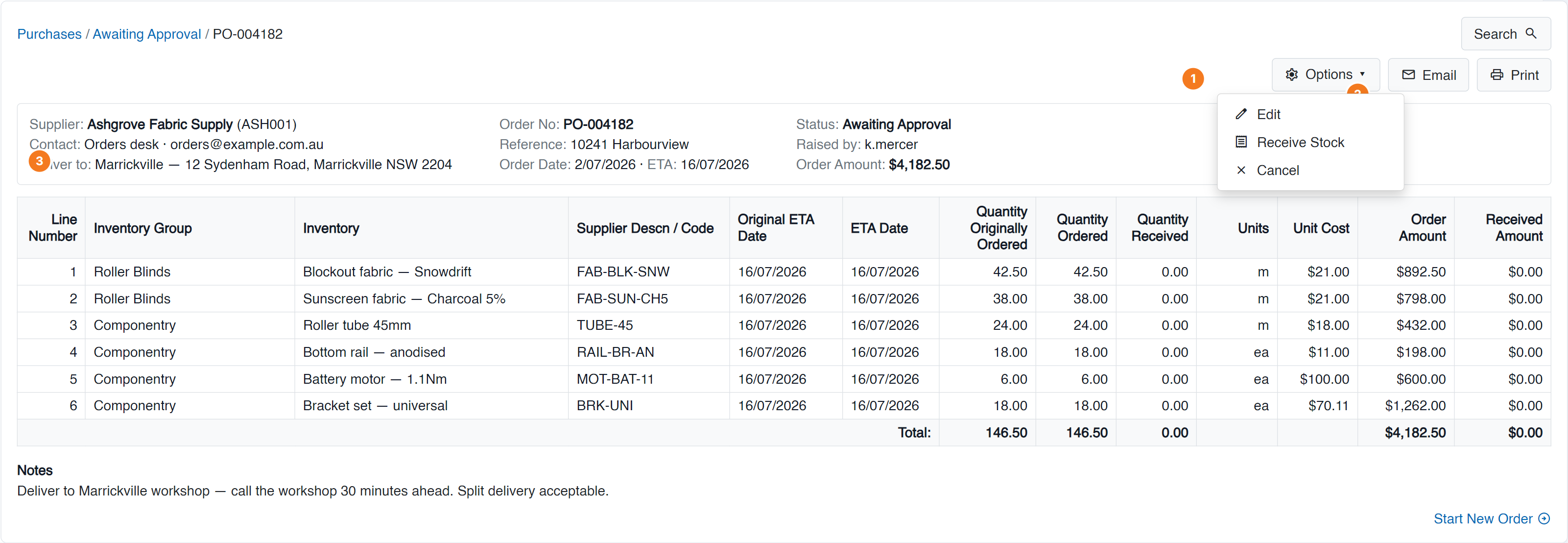
Figure 1 — the Purchase Summary: one purchase order, its header, its lines and the totals. (1) Options holds Edit, Receive Stock and Cancel. (2) Email sends the PO to the supplier and Print produces the document — both open a dialog first so you can check recipients and what’s attached. (3) The header block carries supplier, delivery address, reference, dates, status and order value.
Edit opens the purchase order for changes — lines, quantities and order details.
Print produces the purchase order document. You choose what to print in the dialog before it generates.
Email sends the purchase order to your supplier. The dialog lets you set the recipients and what’s attached before it goes.
- Select Email.
- Check the recipient — it defaults from the supplier record, so make sure that’s current.
- Confirm what’s attached.
- Send.
Attached files
Section titled “Attached files”Attached Files holds documents against this purchase order — supplier confirmations, delivery dockets, corrected invoices. Anything you’ll want when there’s a query months later.
Cancel
Section titled “Cancel”Cancel Order cancels the purchase order. You’re asked to confirm first.
Quick lookup
Section titled “Quick lookup”The search control stays available on this screen, so you can jump straight to another purchase order without going back to the list.
Common questions
Section titled “Common questions”| Question | Answer |
|---|---|
| Can’t edit | The PO’s status may not allow edits, or you lack permission. |
| Email didn’t arrive | Check the supplier’s email address, and ask them to check spam. See Mail-from settings. |
| Cancelled by mistake | Raise a new purchase order — cancelling can’t be undone. |
| The document looks wrong | The layout comes from your document templates. |