
Dispatch calendar & route building
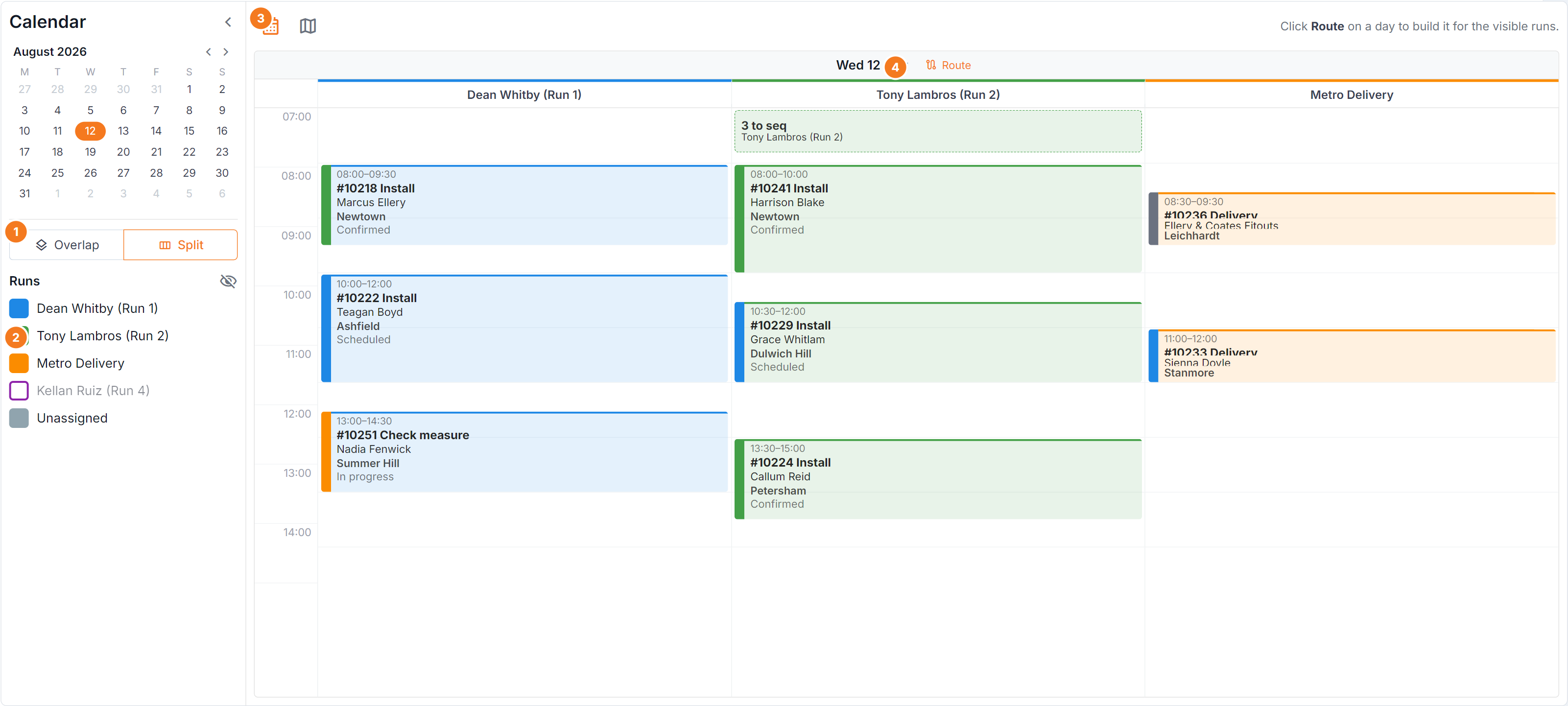
Figure 1 — the dispatch calendar in Split mode. (1) Overlap / Split draws every run on shared columns, or one column per run. (2) The run tick-list chooses which installers and runs you see. (3) The Calendar / Map icons switch how the same day is drawn. (4) Route lays that day’s stops out in driving order for the visible runs — a proposal you save or discard.
The sidebar
Section titled “The sidebar”The rail on the left controls what you’re looking at. Collapse it with the arrow when you need more room, and bring it back with the sidebar icon.
- Overlap — every run drawn on one shared set of columns. Best for spotting clashes.
- Split — one column per run. Best for reading a single installer’s day.
- Run list — tick the installers or dispatch runs to show. The header toggle turns them all on or off at once.
Calendar and Map
Section titled “Calendar and Map”The two icons at the top switch between:
- Calendar view — appointments laid out against time.
- Map view — the same appointments as pins, so you can see how spread out the day is.
Map view is the fastest way to spot a run that criss-crosses town.
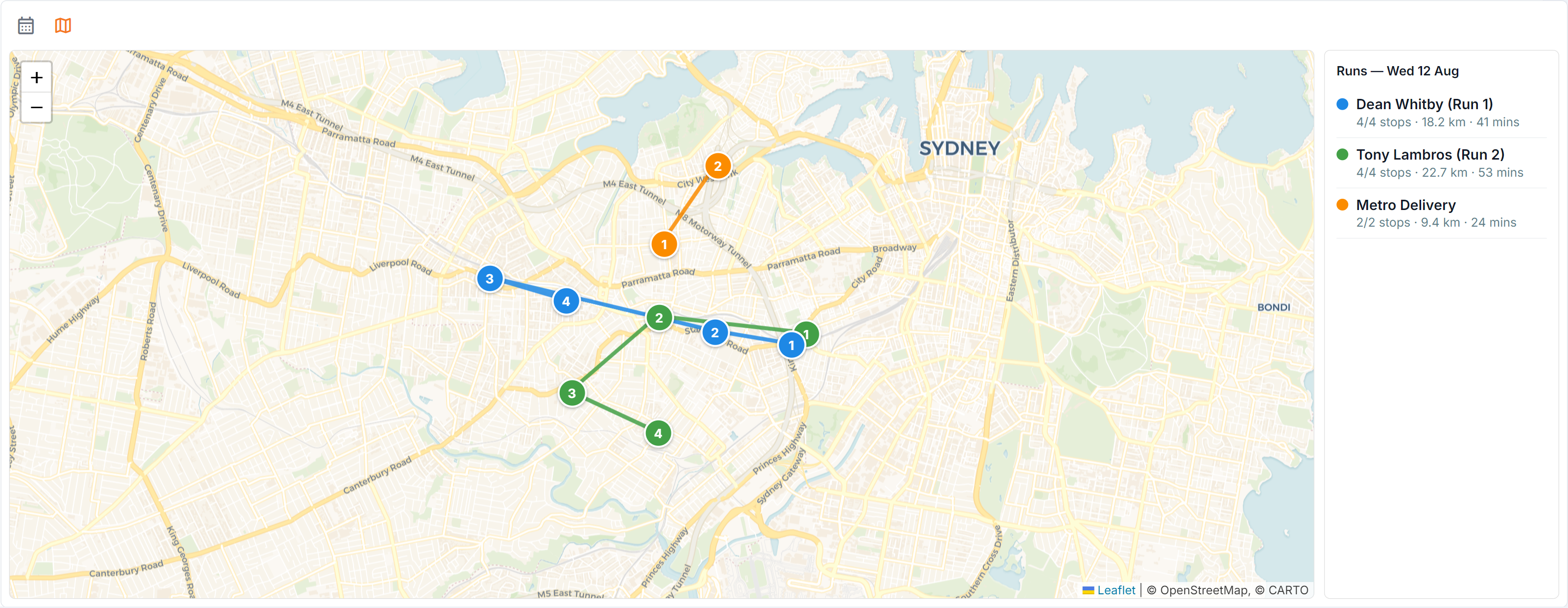
Figure 2 — Map view: the same day’s stops as numbered pins in visiting order, joined by the route line, with each run’s stop count, distance and drive time listed beside the map.
Find a job, print the day
Section titled “Find a job, print the day”- Find a job… — type an order number, customer or order reference and press Enter. It looks at every date and lists the matching jobs with the day each is booked. Click one to go to that day.
- Print — the Run sheet (every installer’s run, a day at a time) or the Truck sheet (what each run needs to load) for the days and runs the calendar is showing. Switch to a single day, or tick a single run, to print just that.
Working with an appointment
Section titled “Working with an appointment”Select an appointment to open it. From there you can:
- Complete / Pay In — mark the install complete and take payment in the same step.
- Email — email the documents for that job.
Drag an appointment to move it to another time or another run.
Build a route
Section titled “Build a route”BUZ can lay out a day’s stops in a sensible driving order instead of you doing it by hand.
- Choose the day you want to lay out, and tick the runs to include.
- Select Route. BUZ orders that day’s stops for the visible runs and shows the proposed times.
- Review the proposal on the calendar — or switch to Map view to see the drive.
- Save route to write the new times back, or Discard to throw the proposal away.
Routing is safe to re-run. Build it again closer to the day and it re-lays out that day only — other days are untouched. Drag a stop afterwards if you want to override the order.
Common questions
Section titled “Common questions”| Question | Answer |
|---|---|
| A run isn’t showing | It’s unticked in the sidebar, or the installer has no working days set — see Installers. |
| Route did nothing | No runs are ticked, or that day has no stops with addresses. |
| Times look wrong after routing | Check the jobs’ install times; a missing time falls back to the default. |
| I saved a route by mistake | Re-run Route and save again, or drag the stops back manually. |
| I want the whole week | The calendar lays out one day at a time — routing is per day by design. |