
Stock re-ordering
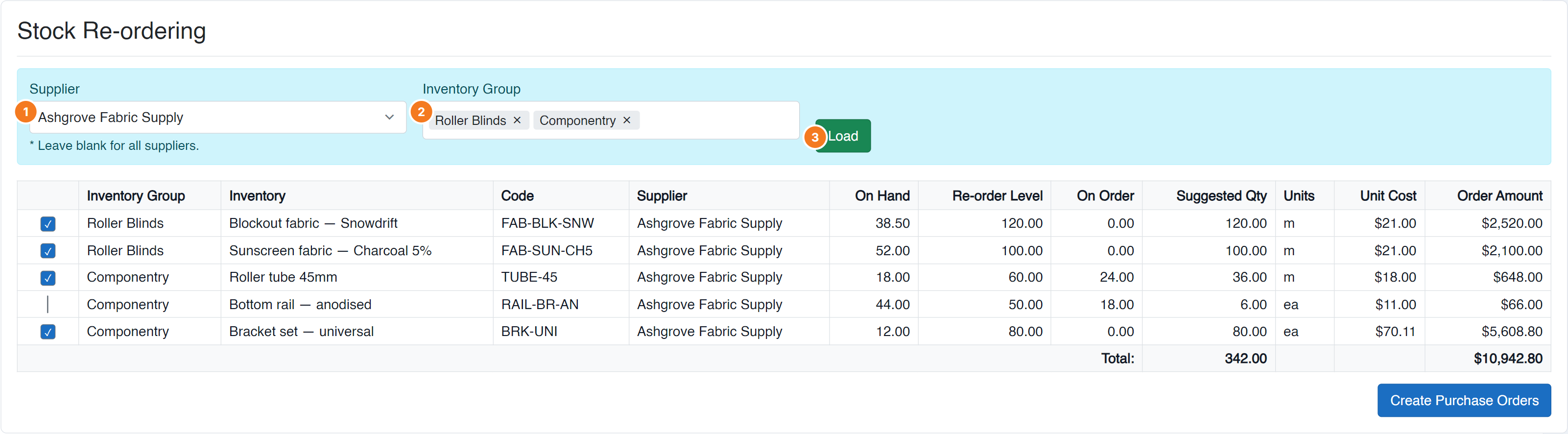
Figure 1 — Stock Re-ordering. (1) Choose a Supplier, or leave it blank for all suppliers — the hint under the box says so. (2) Pick one or more Inventory Groups; the list is searchable. (3) Load works out what’s below its re-order level and suggests quantities, which you can adjust before raising the orders.
Run it
Section titled “Run it”- Choose a Supplier — or leave it blank for all suppliers.
- Choose one or more Inventory Groups. The list is searchable — start typing to narrow it.
- Select Load.
- Review what comes back, adjust quantities, and raise the purchase orders.
What it’s based on
Section titled “What it’s based on”Re-ordering works from your stock levels and the re-order settings on your inventory items. If an item never appears, check it has re-order levels set — an item with none can’t be flagged as needing ordering.
Common questions
Section titled “Common questions”| Question | Answer |
|---|---|
| Nothing loads | You may have filtered to a group with nothing below its re-order level. Try clearing the group filter. |
| An item I know is low isn’t listed | It has no re-order level set on the inventory item. |
| Quantities look wrong | They’re calculated from stock on hand and re-order levels — check those on the item. |
| “Stock Re-ordering” with nothing under it | You don’t have access — ask your administrator. |